
Converting Figma to Elementor means rebuilding a Figma design as a functional WordPress website using Elementor’s containers, widgets, global styles, templates, and responsive controls. The goal is not to copy every pixel blindly. It is to translate the design into a flexible website that stays accurate across screen sizes and remains practical to edit after launch.
That distinction matters. A Figma file is a design specification. Elementor is where that specification becomes a working website with real content, navigation, links, forms, responsive behaviour, and WordPress functionality.
Key Takeaways
- A strong Figma to WordPress workflow starts by understanding the design system before recreating individual pages.
- Elementor Site Settings can centralize colours, typography, layout settings, and other site-wide styling instead of repeating values manually.
- Figma measurements should guide the build, but responsive layouts need to adapt rather than preserve every desktop measurement on smaller screens.
- Reusable components such as headers, footers, cards, buttons, and content sections should be built once where practical.
- Figma to Elementor plugins can accelerate parts of the process, but imported output still needs review for responsiveness, structure, content, accessibility, and performance.
- A visually accurate desktop page is not finished until it has been tested on different screen sizes and reviewed as a real WordPress website.
What Figma to Elementor Actually Involves
A Figma design can show exactly how a website is supposed to look, but it does not automatically define how the WordPress implementation should work.
A finished website has concerns that may not be visible in a static design:
- Which elements should be reusable
- Which content should be editable in WordPress
- How the layout changes between screen sizes
- How headers and footers behave site-wide
- Where links and buttons lead
- How forms function
- How images should be delivered
- How content should be structured semantically
- How the page should behave when text is longer than the mock-up
- How future editors will update the site
That is why converting Figma to Elementor is better understood as translation than duplication.
Figma’s official documentation describes its inspection tools and Dev Mode as ways for developers to examine design properties, measurements, assets, layout information, and generated code snippets. Those tools make handoff easier, but the developer still has to translate those specifications into the target website system. Figma’s Dev Mode documentation explains the inspection workflow in more detail.
For a WordPress implementation, that usually means mapping Figma concepts to Elementor concepts.
| Figma concept | Typical Elementor equivalent |
| Frame | Container or page section |
| Auto layout | Flexbox-based container structure |
| Component | Reusable Elementor element or template |
| Colour style | Global colour |
| Text style | Global font or typography style |
| Spacing system | Container gaps, padding, and margins |
| Image layer | Image widget or background image |
| Desktop/mobile frame | Responsive layout at different breakpoints |
| Repeated page section | Reusable template or consistent component |
The mapping is conceptual rather than exact. A designer might use several nested frames to organize a mock-up, while the cleanest Elementor implementation may require fewer containers.
This is also where professional WordPress development differs from simply reproducing screenshots. The WordPress build must remain usable after the original designer or developer finishes the project. Clio Websites currently lists Elementor Pro as part of its WordPress web-design offering, which makes Elementor a relevant implementation approach within its existing WordPress work.
Pixel accuracy is only one measure of success
Matching the original design matters, but a website can look accurate at one desktop width and still be poorly built.
For example, imagine a Figma hero section with a large heading, text paragraph, button, and product screenshot. Recreating the exact desktop dimensions may look excellent at the designer’s chosen canvas size.
Then the heading changes from five words to nine.
The rigid layout may suddenly wrap badly.
Or the page is viewed on a narrower laptop.
The screenshot may collide with the text.
Or the same section reaches a phone.
Fixed widths and fixed heights may make the entire composition break.
A better implementation preserves the hierarchy and visual intent while allowing the layout to respond to real content and available space.
That is why the objective should be design fidelity plus resilient implementation, not design fidelity alone.
Prepare the Figma Design Before Building
The fastest way to create unnecessary Elementor work is to start dragging widgets onto a page before understanding the Figma file.
Review the complete design first.
Look for patterns that occur across several pages.
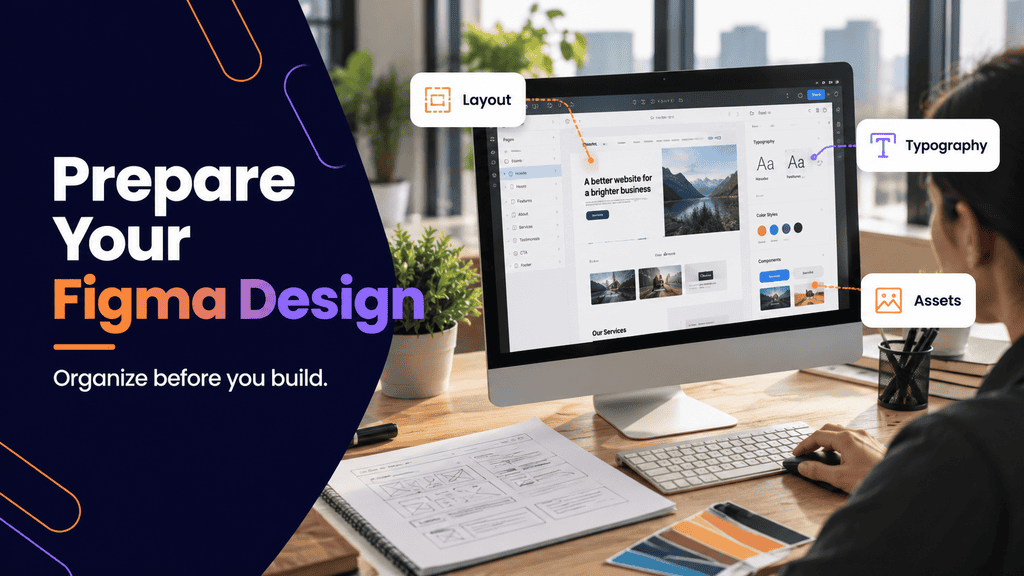
Identify the design system
Before creating the first Elementor container, document the recurring rules behind the design:
- Primary and secondary colours
- Text colours
- Background colours
- Heading styles
- Body typography
- Link styles
- Button styles
- Border radii
- Shadows
- Content widths
- Section spacing
- Grid or column patterns
- Image treatments
- Card styles
Elementor provides global colours, global fonts, Theme Style settings, and layout controls through its Site Settings area. According to Elementor’s official documentation, these settings are intended to centralize site-wide design properties rather than requiring the same styling to be configured repeatedly. Elementor Site Settings documentation explains the available global controls.
Suppose the Figma file uses the same dark blue for headings in 35 different places.
You could manually paste that colour value into 35 Elementor widgets.
But if the design changes later, you now have 35 individual places to update.
Creating a global colour gives you a much cleaner system.
The same logic applies to fonts.
Check how components repeat
Look beyond individual pages.
Does every service page share the same hero structure?
Do testimonial cards repeat?
Is one call-to-action section used across ten pages?
Do blog templates use the same heading treatment?
Does the same header appear everywhere?
These patterns should influence how the Elementor site is structured.
Elementor’s Theme Builder can manage site parts such as headers, footers, single post templates, archives, and other global templates. Elementor documents these as templates that interact with the underlying WordPress theme and can be managed centrally.
You do not want to build a footer manually on 20 separate pages and then discover that the phone number needs updating.
Build once when the element is truly global.
Review responsive designs before development
Ideally, the Figma file includes at least enough responsive direction to explain how important layouts should behave.
Do not assume mobile is simply the desktop version made narrower.
Ask:
- Does a two-column section stack?
- Which column comes first on mobile?
- Does the navigation change?
- Should decorative imagery disappear?
- Does text alignment change?
- How should large typography scale?
- Does a card row become a vertical list?
- Does padding decrease?
- Are elements intentionally repositioned?
Elementor’s container system supports changing direction, dimensions, and element ordering by breakpoint, which is useful when translating responsive design decisions into the finished build. Elementor’s responsive container documentation describes these controls.
If the Figma file does not provide every screen size, the developer has to infer the intended behaviour while preserving hierarchy and usability.
For businesses considering a broader website build or redesign, this is one reason responsive web design should be considered during implementation instead of being treated as a final cleanup step.
How to Convert Figma to Elementor Step by Step
There is no need to begin by recreating every page independently. A more reliable workflow builds the site’s rules first, reusable pieces second, and individual page content after that.
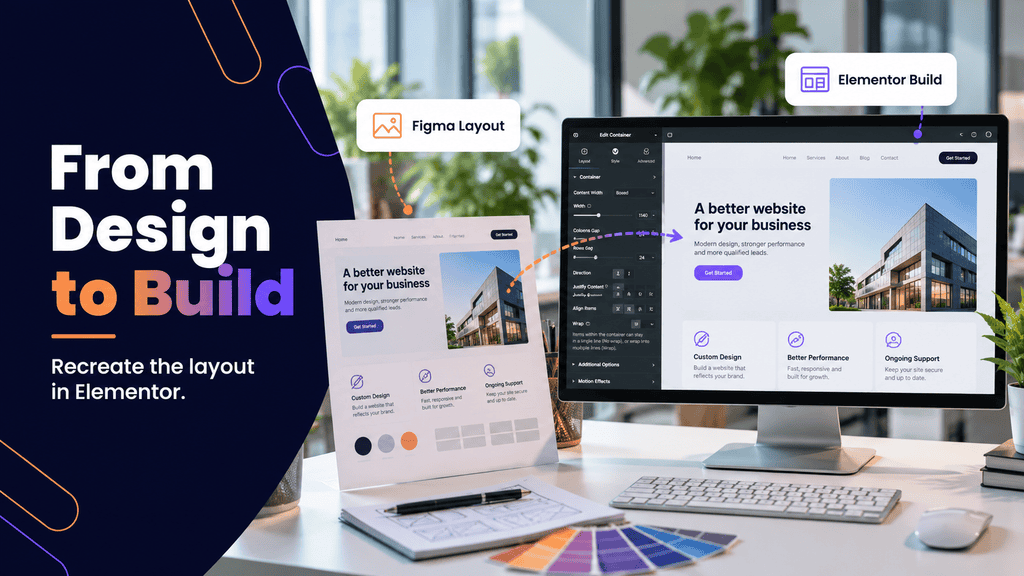
1. Set up WordPress and the Elementor environment
Start with a working WordPress installation and the Elementor setup required by the project.
Before serious page building begins, establish the environment you will actually use for development. Depending on the project, that may include a staging site so work can be reviewed without modifying the production website.
Also determine which theme will provide the foundation for the site.
Avoid changing themes, global layout assumptions, or core architecture halfway through the conversion unless there is a strong reason. Theme styling can interact with Elementor styling, so inconsistent decisions here can create unnecessary troubleshooting later.
Elementor documents Theme Style as a way to define defaults for elements including headings, backgrounds, buttons, images, and form fields, while also noting that theme styles and Elementor styles can interact.
2. Create Elementor’s global design settings
Translate the Figma design system before building complex pages.
Set the site’s recurring:
- Colours
- Typography
- Content width
- Common spacing logic
- Button appearance
- Heading styles
- Image treatment
This turns the Figma visual system into an Elementor visual system.
Do not create 15 nearly identical shades because the Figma file contains minor inconsistencies. First determine whether those differences are intentional.
The same applies to typography.
If the design uses one heading style throughout the site, create a reusable system rather than restyling each heading individually.
3. Build the header and footer
The header and footer affect almost every page, so implementing them early exposes problems with:
- Container widths
- Navigation spacing
- Logo sizing
- Mobile navigation
- Global typography
- Button styling
- Overall alignment
It is easier to correct the foundation before dozens of pages depend on it.
If multiple header variations exist, such as a transparent header on the homepage and a solid header on interior pages, document where each should appear before building them.
4. Recreate one representative page first
Do not immediately convert 20 Figma pages.
Choose one page containing several important design patterns, such as:
- Header
- Hero
- Two-column section
- Cards
- Images
- Buttons
- Testimonials
- Call-to-action section
- Footer
Build that page carefully.
It becomes a test of whether your global colours, typography, container widths, spacing rules, and responsive approach actually reproduce the design successfully.
Problems found here are cheap to fix.
Problems discovered after every page is built are much more expensive in time.
5. Translate Figma frames into sensible containers
Avoid creating an Elementor container for every visual grouping that exists in Figma.
Instead, ask what each structural wrapper needs to accomplish.
A typical section may need:
- An outer full-width container for the background
- An inner constrained container for content width
- Child containers for columns or grouped elements
That may be enough.
Excessive nesting makes layouts harder to understand and maintain. Too little structure, however, can make alignment and responsive control difficult.
Aim for the simplest structure that reproduces the intended layout reliably.
6. Match typography, spacing, and visual details
Now inspect the Figma design more closely.
Compare:
- Font family
- Font weight
- Line height
- Letter spacing
- Text width
- Vertical spacing
- Container padding
- Column gaps
- Border radius
- Borders
- Background colours
- Image proportions
- Alignment
Figma’s inspection tools allow developers to measure spacing and inspect properties instead of estimating them visually.
Still, avoid turning every measurement into an inflexible rule.
A fixed height that works perfectly with placeholder copy can fail once an editor adds another sentence.
Prefer structures that can grow with the content where possible.
7. Export and optimize assets
Export the actual graphical assets required by the design rather than taking screenshots of the Figma canvas.
Examples may include:
- Logos
- Icons
- Illustrations
- Photographs
- Decorative graphics
- Background artwork
Keep decorative assets separate from content that should remain actual HTML text.
If a heading appears visually inside the Figma artwork but represents meaningful page content, it will usually be more maintainable as real text in Elementor rather than flattened into an image.
This also makes text easier to update and allows responsive typography to be handled independently from the graphic.
8. Build reusable sections
Once the first representative page works, identify sections that can safely become reusable building blocks.
For example:
- Service cards
- Testimonial blocks
- FAQ layouts
- Team cards
- Calls to action
- Logo rows
- Contact sections
The purpose is not to force every page into a rigid template.
It is to avoid recreating identical structures unnecessarily.
9. Convert the remaining Figma pages
With the design system established, subsequent pages become much easier.
Reuse the established styles and components, but continue checking each page against its Figma reference.
Do not assume that two visually similar pages are structurally identical.
A service page with a longer heading may need different wrapping behaviour. A page with additional body copy may need more flexible spacing. A landing page may intentionally use a different navigation or content width.
10. Complete the responsive build
Once desktop structure is stable, test responsive behaviour section by section.
Check:
- Tablet widths
- Narrow laptop widths
- Common phone widths
- Very narrow screens
- Long headings
- Longer button labels
- Navigation behaviour
- Forms
- Images
- Horizontal overflow
Elementor lets container direction and element ordering change at responsive breakpoints, so a row on desktop can become a column where appropriate.
Do not wait until the entire project is finished before checking mobile.
A desktop structure that requires extensive workarounds on mobile may indicate that the original container hierarchy should be revised.
A practical example
Consider a hypothetical professional-services website designed in Figma.
The homepage hero shows copy on the left and a large visual on the right. Beneath it are three service cards, a testimonial section, and a contact call to action.
A weak conversion process would rebuild the homepage exactly as shown, hardcode every colour and font size, then create the service pages from scratch.
A stronger process would:
- Establish global typography and colours.
- Build the site header and footer.
- Create a responsive hero structure.
- Develop a reusable service-card pattern.
- Create the testimonial treatment once.
- Test the homepage at multiple viewport widths.
- Reuse those established patterns across interior pages.
Both approaches may initially look similar.
The difference becomes obvious when the business wants to change a brand colour, add another service page, modify the header, or adjust spacing across the site.
Should You Use a Figma to Elementor Plugin?
People searching for a Figma to Elementor plugin are usually hoping for a one-click conversion: select the design, import it, and receive a finished WordPress website.
Tools that attempt to automate this workflow do exist.
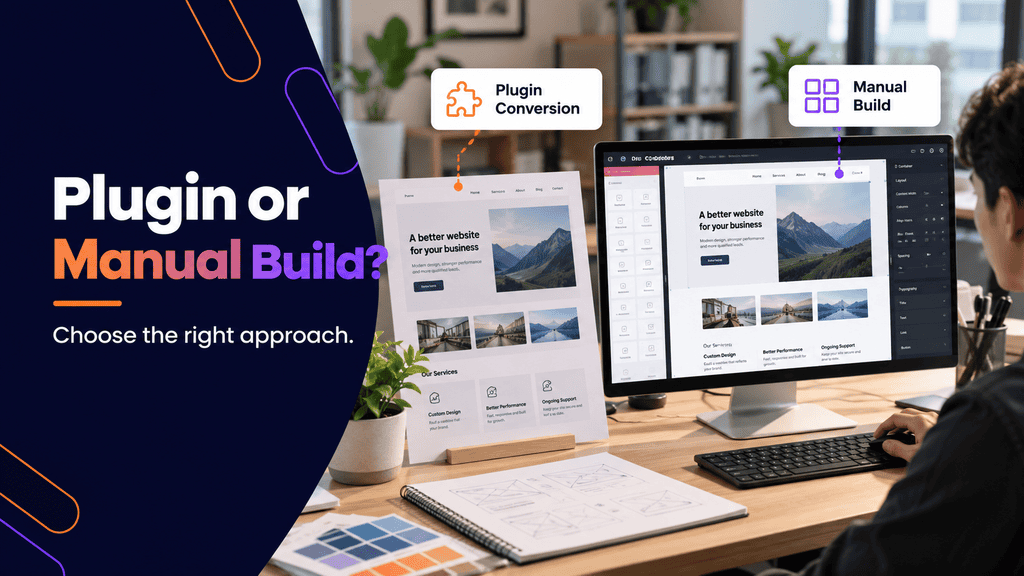
For example, WordPress.org currently lists the third-party Atomic Studio Figma to Elementor V4 Converter, which describes importing a Figma frame as editable Elementor elements rather than simply embedding a screenshot. It is a third-party plugin, not evidence that every Figma design can be converted into a production-ready website automatically. View the plugin listing on WordPress.org.
Automation can be useful, particularly for creating an initial layout.
But imported output should still be treated as a starting point.
Manual build versus automated conversion
| Approach | Strength | Main limitation |
| Manual Elementor build | Maximum control over structure and responsive behaviour | Requires more implementation work |
| Figma conversion plugin | Can reduce repetitive initial setup | Imported structure still requires review |
| Hybrid approach | Automation for suitable sections, manual refinement for important areas | Requires judgment about what to automate |
A plugin cannot make every project decision for you.
You still need to review:
- Container structure
- Global styles
- Responsive behaviour
- Semantic heading order
- Navigation
- Dynamic content
- Forms
- Images
- Links
- Accessibility
- Site performance
- WordPress editing experience
The more complex the Figma design becomes, the more important that review becomes.
When a plugin can make sense
Automation is most useful when the design is orderly and predictable.
For example, a straightforward marketing page with:
- Clear Auto Layout
- Consistent spacing
- Standard typography
- Simple columns
- Repeated cards
may translate more cleanly than an experimental design using overlapping layers, unusual interactions, complex animations, and many custom components.
If the imported layout takes longer to clean up than a manual build would have taken, the automation has not saved much.
The best question is therefore not:
Which tool converts Figma to Elementor automatically?
It is:
Which workflow leaves us with the cleanest maintainable WordPress site?
What to Check Before the WordPress Site Goes Live
Matching the Figma file is not the final quality check.
The website should now be reviewed as a functioning website.
Run a visual comparison
Compare the live Elementor page with the approved Figma design.
Review:
- Overall page width
- Section spacing
- Heading hierarchy
- Typography
- Colours
- Button dimensions
- Image crop
- Card dimensions
- Alignment
- Borders
- Shadows
- Responsive layouts
Do this at comparable viewport widths.
Otherwise, normal responsive differences can be mistaken for implementation errors.
Check real content
Replace placeholder material before final visual QA where possible.
Real copy exposes problems that short design text does not.
Check unusually long:
- Page titles
- Service names
- Navigation items
- Button labels
- Testimonials
- Form labels
A layout should tolerate reasonable content variation without falling apart.
Test responsiveness
A responsive website should be reviewed as a continuous layout rather than at only three convenient screenshots.
Resize the browser gradually.
Watch for the points where:
- Text becomes cramped
- Cards become too narrow
- Images dominate the page
- Navigation stops fitting
- Buttons wrap awkwardly
- Columns should stack
- Decorative elements collide with content
These transition points often reveal issues that are missed when developers check only one desktop, tablet, and phone width.
Review functionality
Test every interactive element.
That includes:
- Main navigation
- Mobile navigation
- Buttons
- Text links
- Forms
- Accordions
- Tabs
- Popups
- Sliders
- Embedded media
- Download links
- WooCommerce functionality, when applicable
A beautifully reproduced button that links to the wrong page is still a broken implementation.
Review page structure and SEO basics
The Figma design may communicate visual hierarchy, but the WordPress implementation needs logical document structure too.
Review:
- The page title
- Heading hierarchy
- Internal links
- Image alternative text where appropriate
- Page metadata
- Indexing settings
- Canonical configuration where relevant
- Redirect requirements if replacing an existing site
These tasks should not be postponed simply because the project began as a design conversion.
Review maintainability
Finally, open the Elementor editor as though you were the person responsible for the website six months later.
Ask:
- Are global colours actually global?
- Are typography styles consistent?
- Are container names understandable?
- Are reusable components handled consistently?
- Can normal content be changed without breaking the layout?
- Is unnecessary custom CSS scattered across individual widgets?
- Are there obsolete draft sections or hidden duplicates?
- Is the plugin list larger than necessary?
This is where a technically clean Figma to WordPress conversion separates itself from a page that merely resembles the mock-up.
After launch, routine updates, plugin changes, backups, testing, and troubleshooting become part of the site’s ongoing lifecycle. Clio Websites includes both WordPress development and ongoing website support among its current website services.
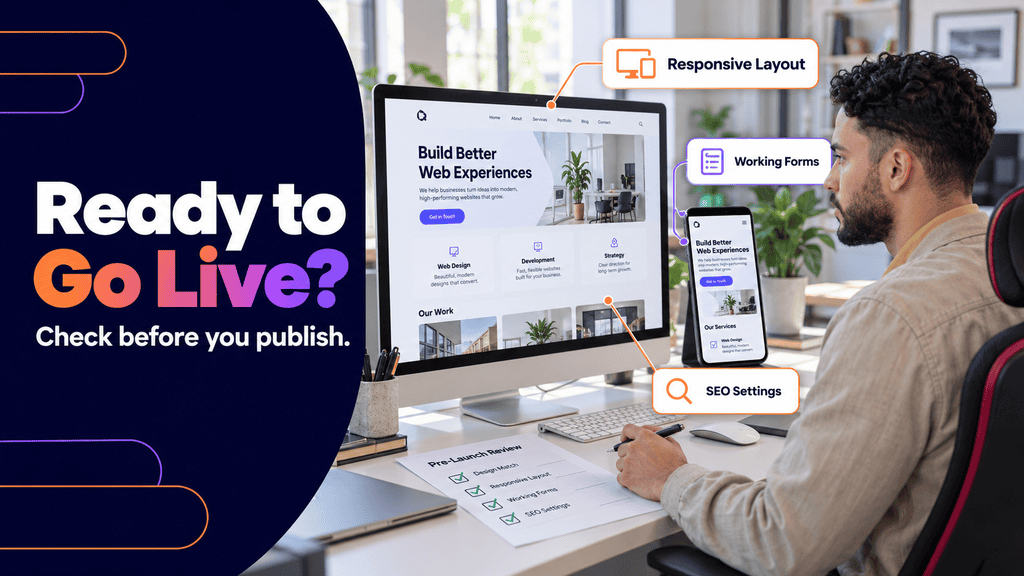
Figma to Elementor pre-launch checklist
Before approving the finished build, verify:
- Global colours match the intended design system
- Global typography is configured consistently
- Header and footer work across relevant templates
- Desktop layout matches the approved design
- Tablet layouts have been reviewed
- Mobile layouts have been reviewed
- Long content does not break important components
- Navigation works
- Buttons and links lead to the correct destinations
- Forms have been tested
- Images display correctly
- Heading structure is logical
- Reusable sections are implemented consistently
- No obvious horizontal overflow appears
- No temporary or placeholder content remains
- Unnecessary duplicate sections have been removed
- The live page has been reviewed outside the Elementor editor
The broader principle is straightforward: do not approve a Figma conversion based only on how the desktop screenshot looks.
The content framework used for this guide also calls for WordPress-specific detail, including Elementor, responsive behaviour, page templates, maintenance, and practical implementation considerations rather than generic platform commentary.
Build the System, Not Just the Screenshot
The best Figma to Elementor conversion preserves more than appearance. It carries the original design language into a WordPress system that can respond to different screens, accommodate real content, reuse common components, and remain understandable when someone needs to edit it later.
Use Figma as the design specification and Elementor as the implementation system. Set the global rules first, build reusable structures deliberately, test responsiveness during development, and judge the final result as a functioning website rather than a static copy of the design.
FAQs
Can you convert Figma directly to Elementor?
Yes, you can recreate a Figma design in Elementor manually, and third-party conversion tools can automate parts of the process. However, imported layouts still need to be checked for structure, responsiveness, content, functionality, and maintainability before being treated as finished WordPress pages.
Is there an official Figma to Elementor plugin?
Third-party tools for Figma to Elementor conversion are available in the WordPress ecosystem. One current example is Atomic Studio’s converter listed on WordPress.org. Before using any conversion plugin, review its compatibility, current documentation, output quality, and fit for your site’s Elementor configuration.
Is it better to convert Figma to Elementor manually?
Manual development offers greater control over container structure, responsive behaviour, reusable components, and the final editing experience. Automation may save time on suitable layouts, so a hybrid workflow can also make sense. The better method is the one that produces clean, manageable output without creating more cleanup work than it saves.
How accurate can a Figma to Elementor build be?
A carefully implemented Elementor page can closely follow the visual system specified in Figma. Exact appearance can still vary across viewport sizes because a functioning responsive website must accommodate different screen dimensions, browser rendering, and real content rather than displaying one fixed canvas.
Do I need Elementor Pro to convert Figma to WordPress?
Not every possible WordPress build requires Elementor Pro, and the requirements depend on the features and architecture of the project. Elementor documents some capabilities, including Theme Builder features, within its Pro offering, so determine which Elementor features the design requires before starting the build.
How should a Figma design be prepared for Elementor?
Keep typography, colours, spacing, components, and layout patterns consistent. Use clear layer names, organized frames, reusable components, and responsive examples where possible. A clean Figma design system makes it much easier to establish Elementor global styles and reusable structures before individual pages are built.
Can Figma be converted to WordPress without Elementor?
Yes. Figma is the design source, not a requirement for any particular WordPress builder. The design can be implemented using other WordPress approaches, including the native block system, another builder, or custom theme development, depending on the project’s technical requirements.
